
Integrations
CLI Integration
CLI Integration
Quotio exposes a local proxy server that simulates the OpenAI API. This allows any CLI tool compatible with the OpenAI SDK to route traffic through Quotio, enabling centralized quota management and failover.
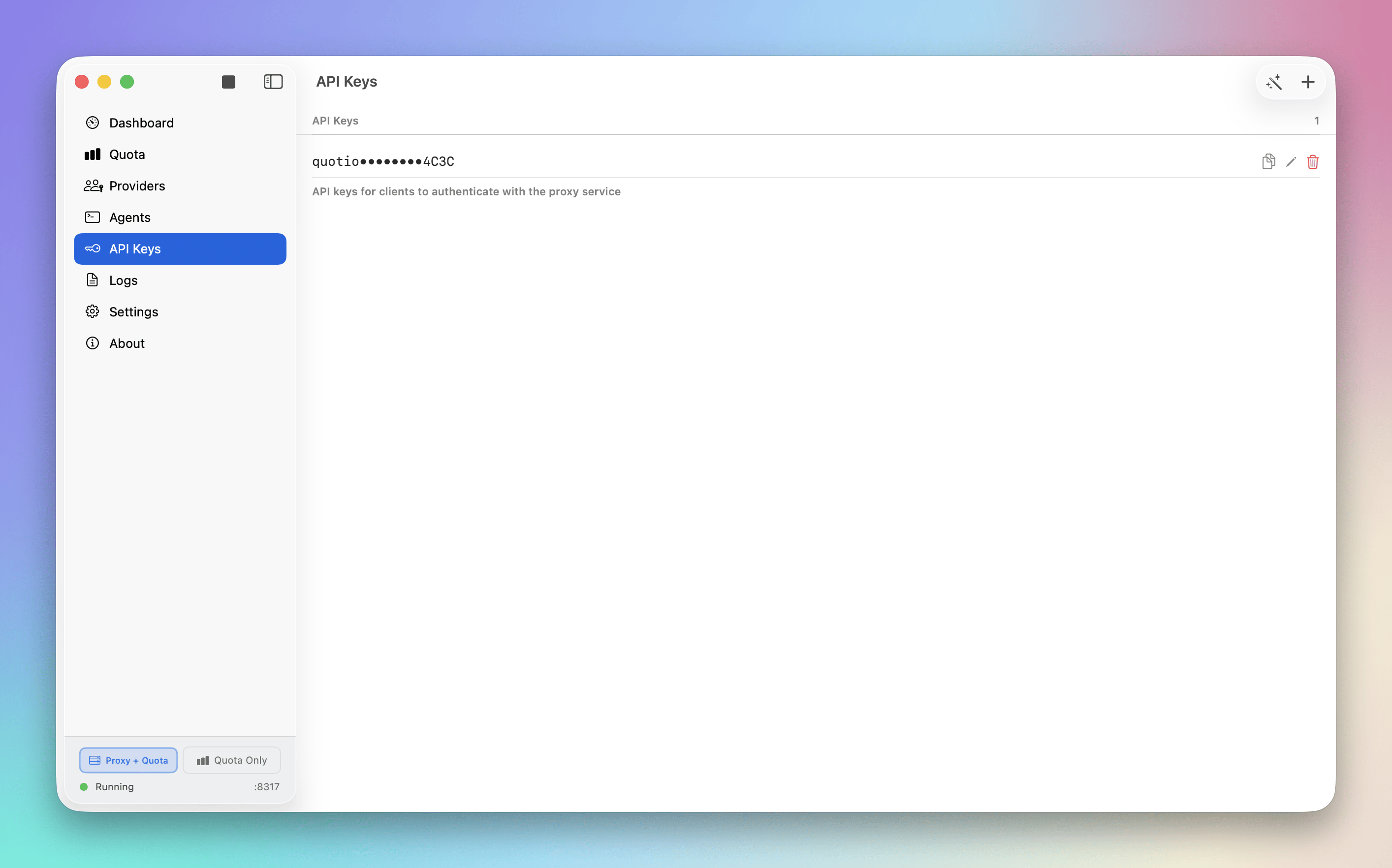
Note: You need to generate an API key from Quotio's API Keys tab to authenticate with the proxy.
Enabling the Local Server
- Open the main app window and go to the Dashboard tab.
- If prompted, download and install the CLIProxyAPI binary.
- Click Start Proxy to enable the local server.
- Note the port number (Default:
8317) shown in the dashboard.
Configuration
The base URL for the local proxy is:
http://localhost:8317/v1
Generate API Key
First, generate an API key in Quotio:
- Open the main app window
- Go to the API Keys tab
- Click Generate to create a new API key
- Copy the generated key
Environment Variables
Most CLI tools accept OPENAI_BASE_URL and OPENAI_API_KEY.
To use Quotio, export these variables in your shell profile (.zshrc or .bashrc):
export OPENAI_BASE_URL="http://localhost:8317/v1"
export OPENAI_API_KEY="your-generated-api-key-here"
Usage Example
curl
curl http://localhost:8317/v1/chat/completions \
  -H "Content-Type: application/json" \
  -H "Authorization: Bearer your-generated-api-key-here" \
  -d '{
    "model": "gpt-4",
    "messages": [{"role": "user", "content": "Hello via Quotio!"}]
  }'
Quotio will receive this request, select the best available Agent based on your failover rules, and forward the request to the actual provider.
Supported Endpoints
/v1/chat/completions(Streaming & Non-streaming)/v1/models(Returns list of active Agents as models)
Next Steps
Learn how to integrate specifically with Claude Code.