
Managing Providers
Managing Providers
Effective provider management is essential for utilizing Quotio's multi-provider capabilities. This section details how to maintain your registry of AI provider connections.
Adding Providers
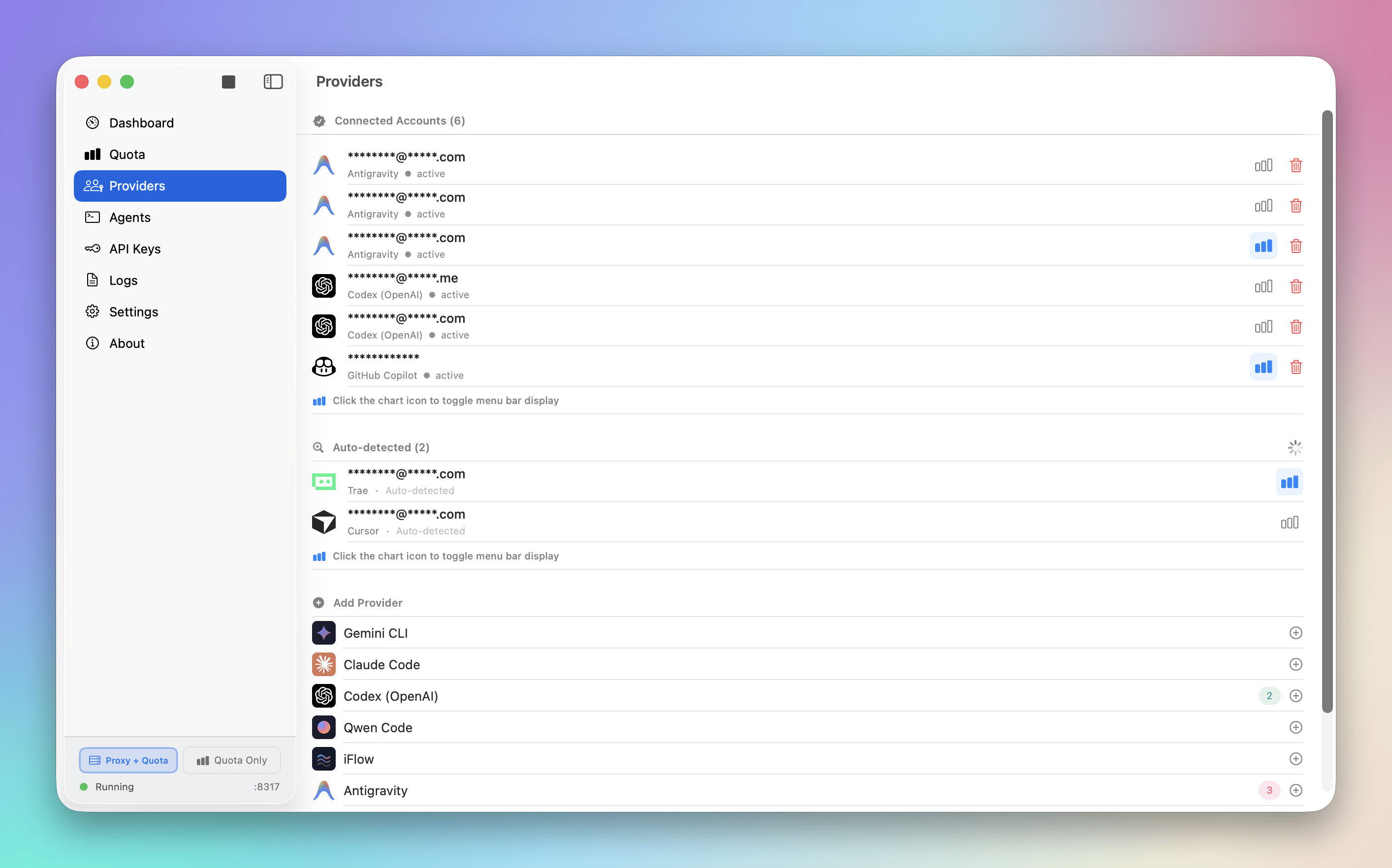
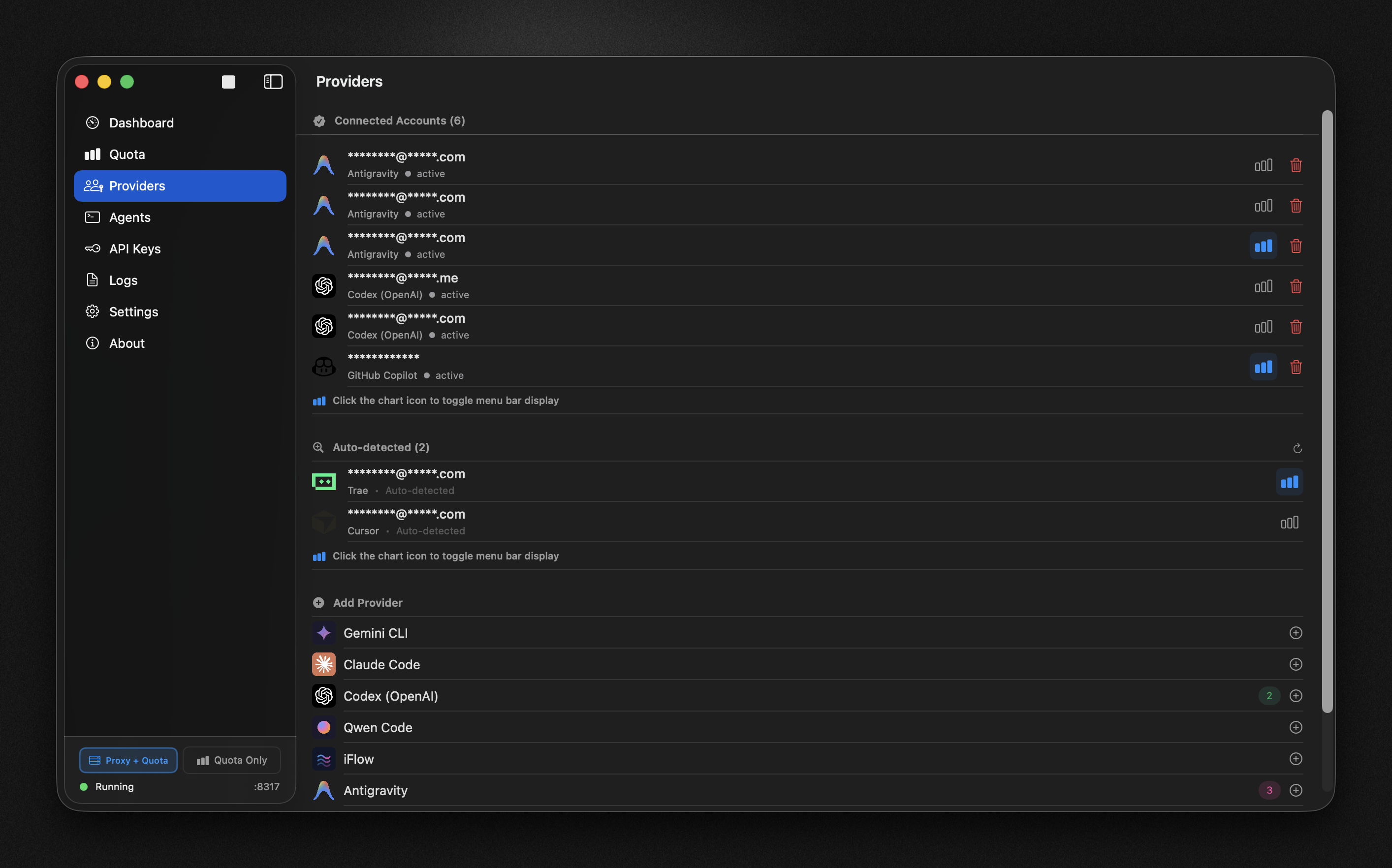
Navigate to the Providers tab in the main app window.
- Click Add Provider (plus button).
- Select the Provider (Claude, Gemini, OpenAI, etc.).
- Follow the authentication flow (OAuth, API key, or service account).
- (Optional) Providers may support tagging for organization.
Managing Connections
Currently, provider connections cannot be modified after setup. If credentials expire or need to be updated:
- Remove: Click the trash icon to disconnect the provider.
- Re-add the provider with new credentials.
- Follow the authentication flow again.
Note: Re-authentication UI is coming soon for easier credential updates.
Warning: Removing a provider immediately stops quota tracking for that service. If this was your only provider, quota monitoring will stop until you add another one.
Provider Types
Quotio supports different types of provider connections, each with its own authentication method and use cases:
OAuth Providers
Browser-based authentication for CLI tools and platforms:
- Claude Code: Opens Anthropic OAuth page for Claude CLI access
- GitHub Copilot: Device code flow for GitHub Copilot subscriptions
- Gemini CLI: Google OAuth for Gemini CLI access
- Qwen Code: Alibaba OAuth for Qwen CLI access
- iFlow: iFlow OAuth for iFlow CLI access
- Kiro (CodeWhisperer): AWS OAuth for Amazon CodeWhisperer
- ChatGPT Codex: OpenAI OAuth for Codex CLI access
- Antigravity: Google Antigravity IDE OAuth
Process: Click "Add Provider" → Select provider → Browser opens → Login → Authorization granted → Connection established.
Service Account Providers
Enterprise providers using service account files:
- Vertex AI: Upload Google Cloud service account JSON file
Process: Click "Add Provider" → Select Vertex AI → Upload JSON file → Connection verified.
Quota-Only Tracking
Applications that Quotio monitors for usage but cannot be used as providers:
- Cursor: Tracks usage from local Cursor application database (read-only)
Note: These are not full providers and cannot route AI requests. They only provide quota monitoring.
Security & Storage
- OAuth Tokens: Stored securely in macOS Keychain, refreshed automatically
- API Keys: Encrypted and stored in app preferences
- Service Account Files: Stored securely, used only for API calls
- Auto-Detected: Uses existing local credentials, no additional storage
Next Steps
Learn how to monitor your usage across all providers.